
Check the order options for your actual service address. Capacity and activation eligibility matter even when a kit is available from a shop. Buying a different plan to bypass a restriction may leave you without the service you intended to use.
Tutorials
Stuck with something? We're here to help.
17 results / Page 2
Read the app’s status and check for obstructions, power interruptions, and cable damage. Note when the problem occurs and whether it follows bad weather or a moved dish. Follow Starlink’s current troubleshooting instructions before performing a factory reset.
Bypass mode changes the role of the Starlink router so you can use compatible third-party networking equipment. Check the Ethernet connection and recovery instructions for your model first. Record your network settings before making changes.
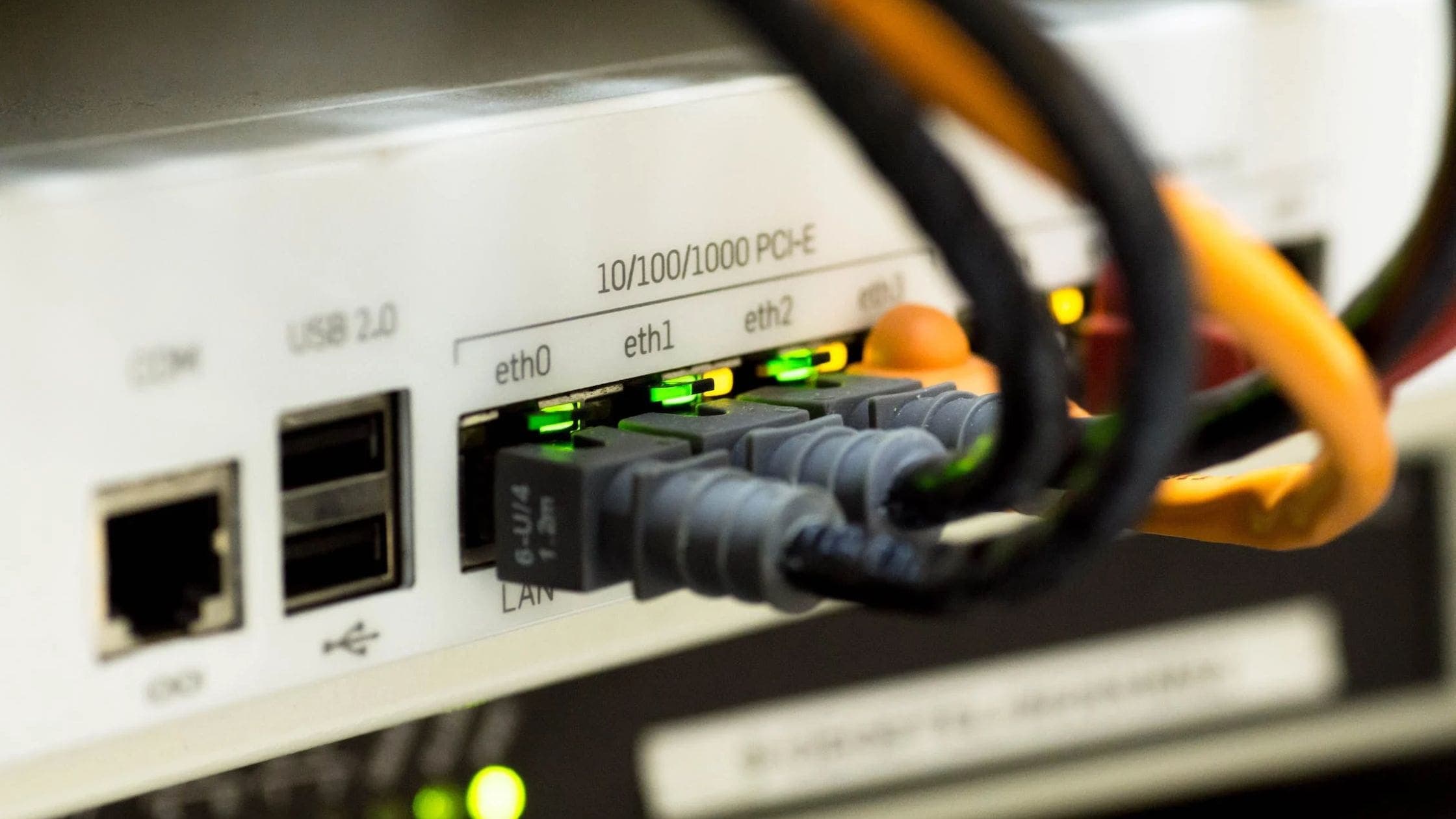
Check the networking options on your current plan before hosting a service or relying on inbound connections. A public IP and a guaranteed static IP are different commitments. Use Starlink’s current networking documentation and your router’s security guidance.
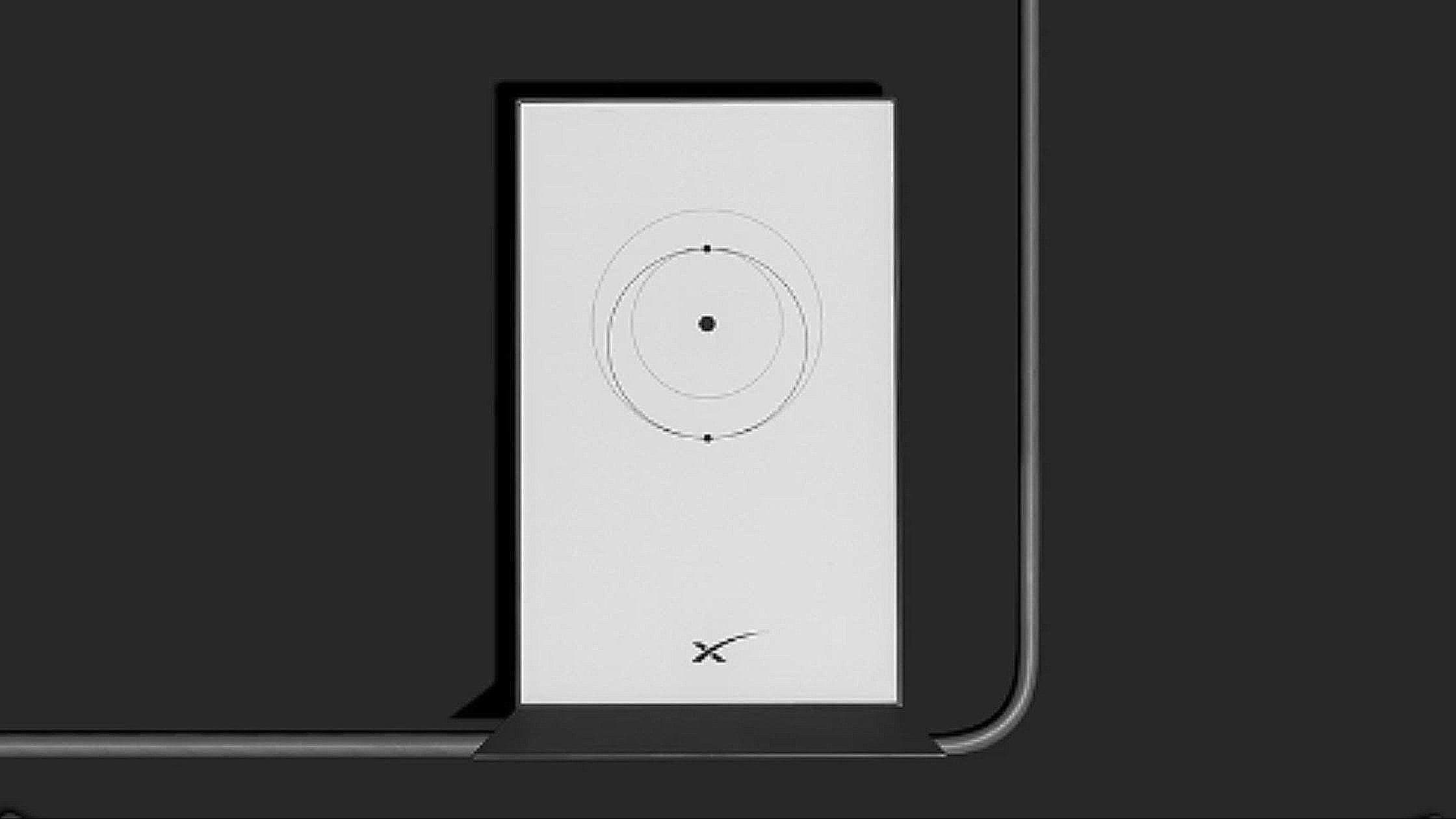
Identify the router model and try the recommended restart steps before a factory reset. Reset procedures vary by hardware. A factory reset can remove Wi-Fi settings, so follow the exact current instructions and be ready to set up the network again.

Check the kit’s transfer eligibility and activation availability before paying for used hardware. The seller must release eligible hardware from the existing account. Don’t share account passwords or assume the buyer can keep the seller’s subscription.
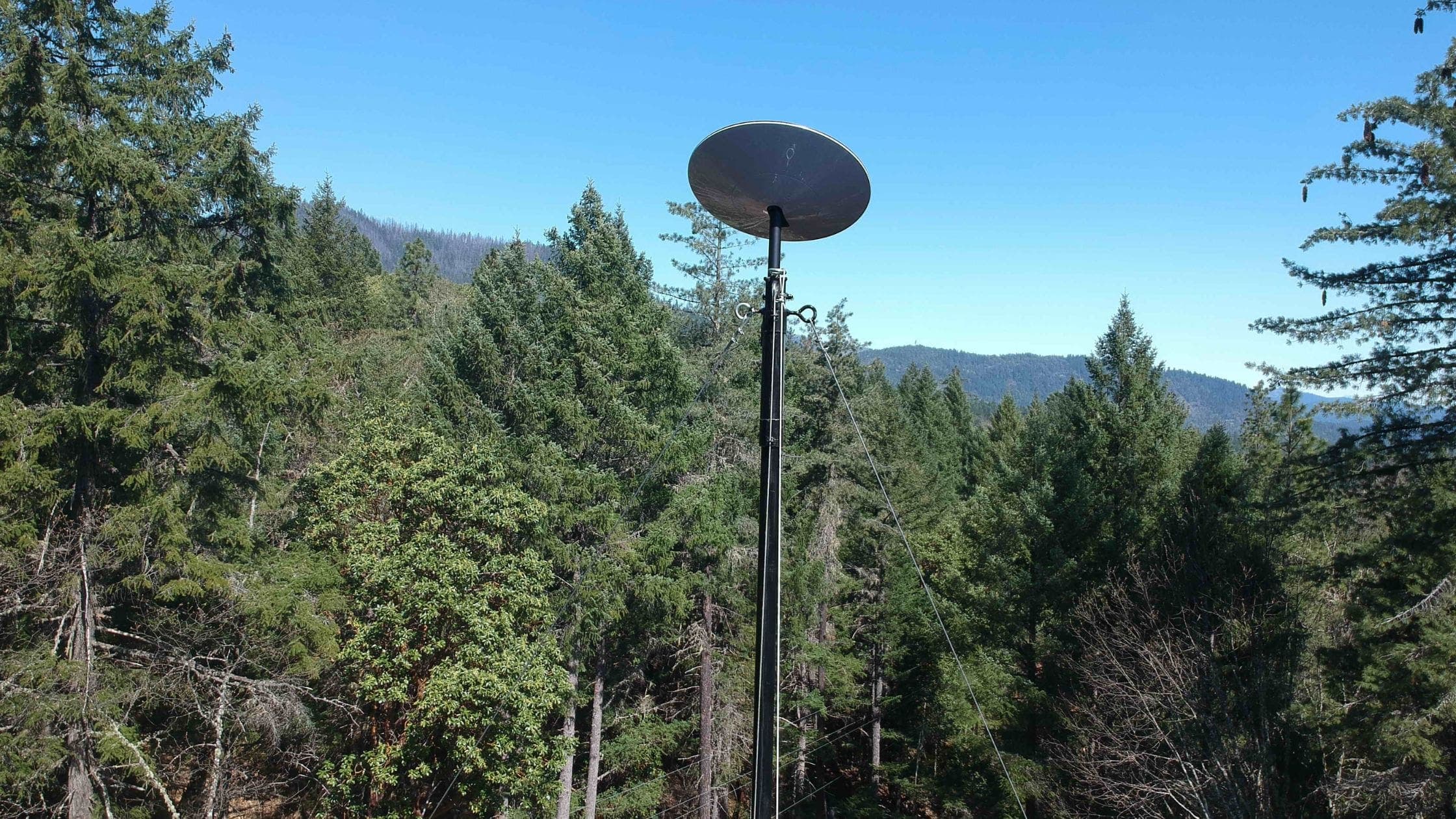
Use the app’s obstruction tool at the intended dish position before a permanent installation. Trees, roof edges, and other objects can interrupt the connection as satellites move overhead. Recheck after moving the kit or when foliage changes.